Home > User Interface > Results Processing > Fatigue Analysis > Running the Fatigue Analysis
Running the Fatigue Analysis
Once all the parameters related to your fatigue analysis are defined, you may actually run the fatigue computation either in interactive or in batch mode.
Interactive mode
The interactive mode may be launched by clicking the Calculate button placed in the lower-right corner of the Edit fatigue analysis pane. Note that with the interactive mode, the whole process is automatically run.
The flip side is that the GUI is frozen and you need to wait for the end to get any results.
Clearly, this interactive way is recommended for just beginners or for checking purpose when you know that the whole fatigue process is short enough. Otherwise, we recommend to use the batch mode.
Batch mode
Two option are available with the batch mode.
"All in one" option
This option is based on the .DSF file.
Once you have defined all the parameters related to your fatigue analysis, click OK in the lower-right corner of the Edit fatigue analysis panel to validate all the settings.
Right click on the fatigue analysis name from the Model browser, and select Generate DSF file from the pop-up menu that displays, as illustrated next.
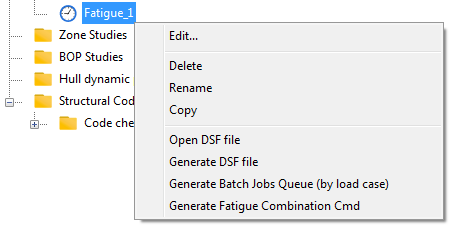
Once your DSF file is created, you can run the GUI as a batch process through simple ASCII command files (.CMD) or using the Batch Processing form that is available from the Tools menu. Refer to the Batch commands to learn more about batch commands.
"Fatigue by load cases" option
The fatigue post-processing is performed in two steps:
- Compute the individual damage for every load case; whatever the probability associated with every load case, the computed damage will consider 100% of occurrence;
- Combine all individual damage with their probabilities to get the global fatigue results.
Once you have defined all the parameters related to your fatigue analysis, click OK in the lower-right corner of the Edit fatigue analysis panel to validate all the settings.
First step : load cases generation
Right click on the fatigue analysis name from the Model browser.
- Select Generate Batch Jobs Queue (by load case) from the pop-up menu (see above);
-
This creates a file "Fatigue_Analysis_name.DBQ" (in the model folder) that shall be imported into the Batch processing dialog box.
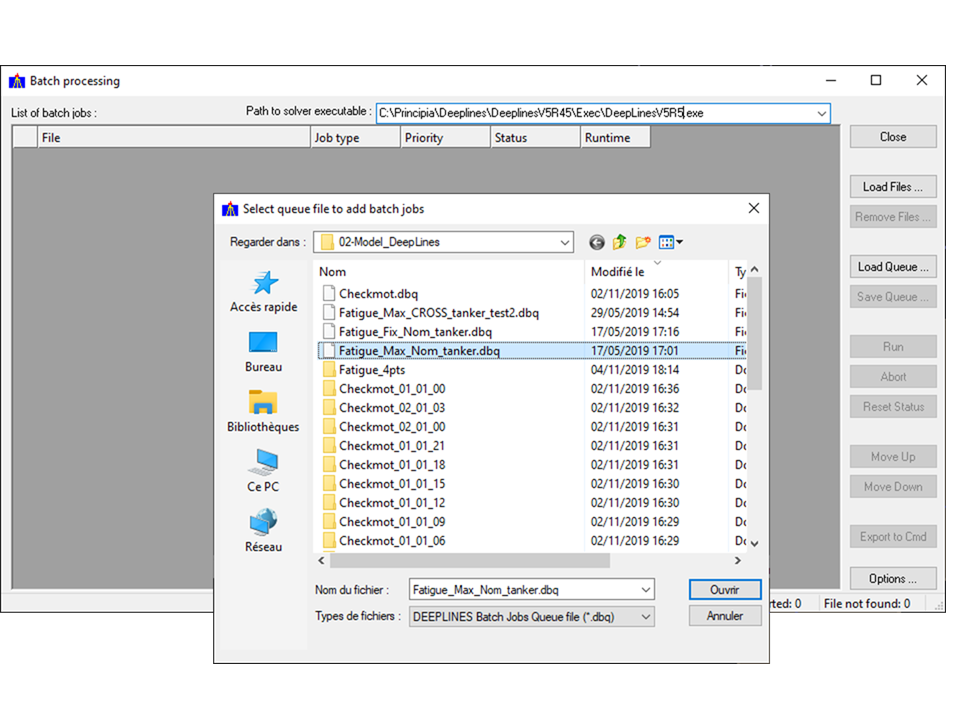
Depending on the default data save format selected in the global settings dialog box, the dbq file will generate output in a text or a database format. This setting can be modified by clicking on the "Job type" cell of the concerned load case to switch from one mode to the other.

-
Run the batch mode using the number of CPUs available: by default eight load cases will be processed in parallel.
In text mode, a folder with the name of the fatigue analysis is created and contains itself the specific subfolders for every load case. In database mode the subfolders for every load case are created in the export_fat folder
Second step : load cases fatigue results combination
-
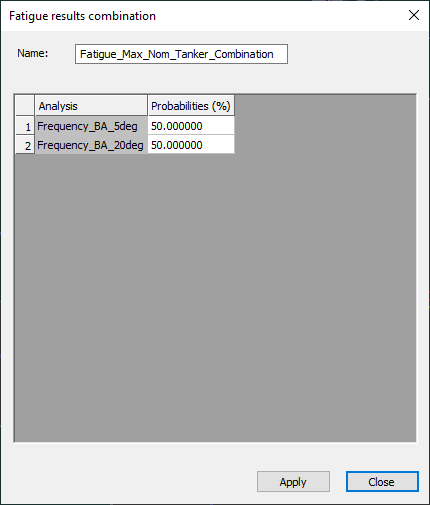
Select, from the fatigue contextual menu the Generate Fatigue combination files item (see above) to open the following dialog box. All the fatigue analysis load cases are listed with their default probabilities values. These probabilities values can be modified.
-
After having checked the probability values, launch the combination process by clicking on the Apply button
Depending on the default data save format selected in the global settings dialog box, the data used for the combination will be retrieved from the export_fat folder (in database mode) or from the fatigue analysis folder (in text mode).
The results files will be placed in a subfolder named after the Name dialog box field.
In database mode, the results will be stored in a database, in text mode the results will be stored in a text file and two summary files (one in text format, one in excel format). The Text results files section describes the text files formats.
It is possible to run the fatigue combination process as a batch command.
To do so, create a csv file listing the load cases names and their associated probabilities in %. For the example used in the above dialog box, the csv file would be :
  Frequency_BA_5deg;50
  Frequency_BA_20deg;50
Then launch the batch command in one of the following form depending on the desired output type (respectively text or database):
DEEPLINES_EXEC_FILE -fatCombination FATIGUE_ANALYSIS_NAME CSV_FILE_NAME FILE_NAME.DSK

DEEPLINES_EXEC_FILE -fatCombination_sql FATIGUE_ANALYSIS_NAME CSV_FILE_NAME FILE_NAME.DSK
