Home > User Interface > Results Processing > Hull dynamic pressures
Defining Hull dynamic pressures analyses
You may create a new Hull dynamic pressures analysis by selecting the New
"Hull dynamic pressures" analysis item from the pop-up menu that displays as
you click the Fatigue folder in the model browser.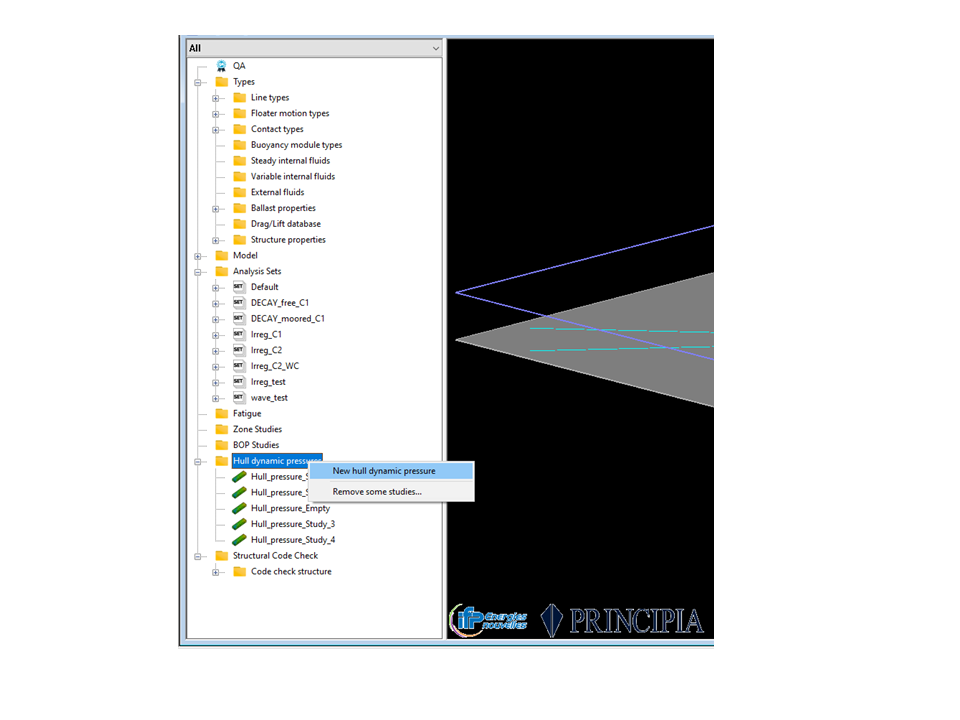
Note
Before launching any "Hull dynamic pressures" analysis, you must have run at least one dynamic analysis.
Once a new "Hull dynamic pressures" analysis is created, you may edit the analysis parameters either of the following ways:
-
Double click the "Hull dynamic pressures" analysis name from the model browser
-
Right click the "Hull dynamic pressures" analysis name from the model browser and select Edit in the pop-up menu that displays.
The Edit "Hull dynamic pressures" window is composed of two main parts.
The action buttons located in the upper-right corner of the window are associated with the following actions:
- OK: Save and close the edit panel
- Cancel Close the edit panel without saving.
- Compute: Launch the post-processing.
- Generate Batch: Used to generate the batch file and run the "Hull dynamic pressures" analysis processing with the batch mode. It created a .pti file per analysis and the batch toolc will run that file
- Generate queue: Creates a queue file for all sub studies to be used in the batch processing user interface. A .dbq file is created in the root folder (for instance Hull_pressure_1). All the analysis in the root folder will then be launched by dragging the .dbq file in the batch tool. This can then be launched in parallel by enabling multi-threading in the batch tool.
Generated batch and queue files are located in the export_Hull_Pressures folder of the dsk file directory.
The following tab-sheets serves to define all "Hull dynamic pressures" analysis parameters :
-
General: This tab is used to set-up the most general parameters of any request, i.e; the selected floaters.
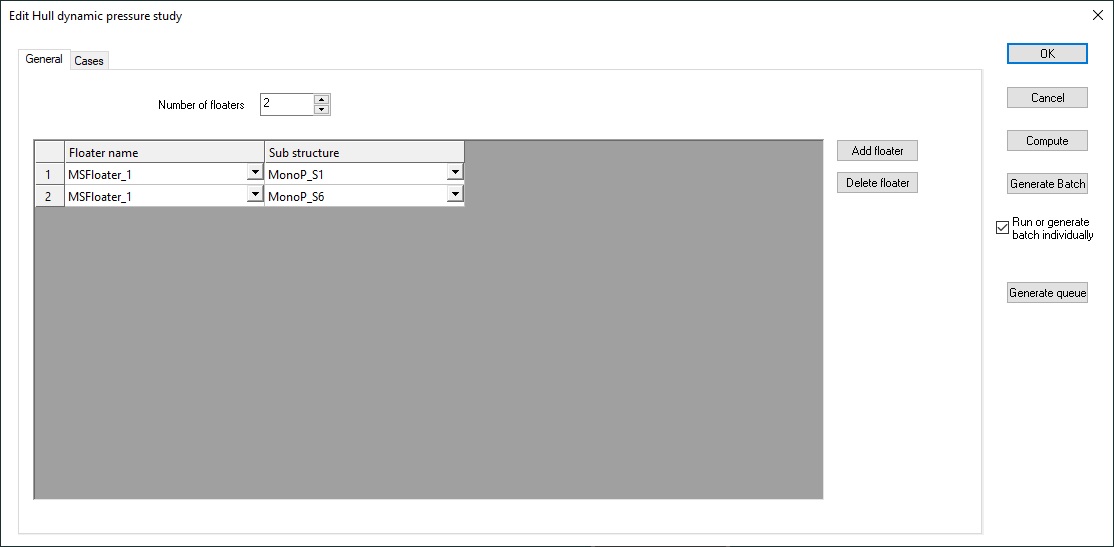
-
Cases: This tab is used to define several post-processing requests; every request (so-called "case") is associated with, on one hand, a floater (and possibly substructures on the floater if defined in the mesh) among the previous list and a selection of dynamic analyses used to derive the pressure.
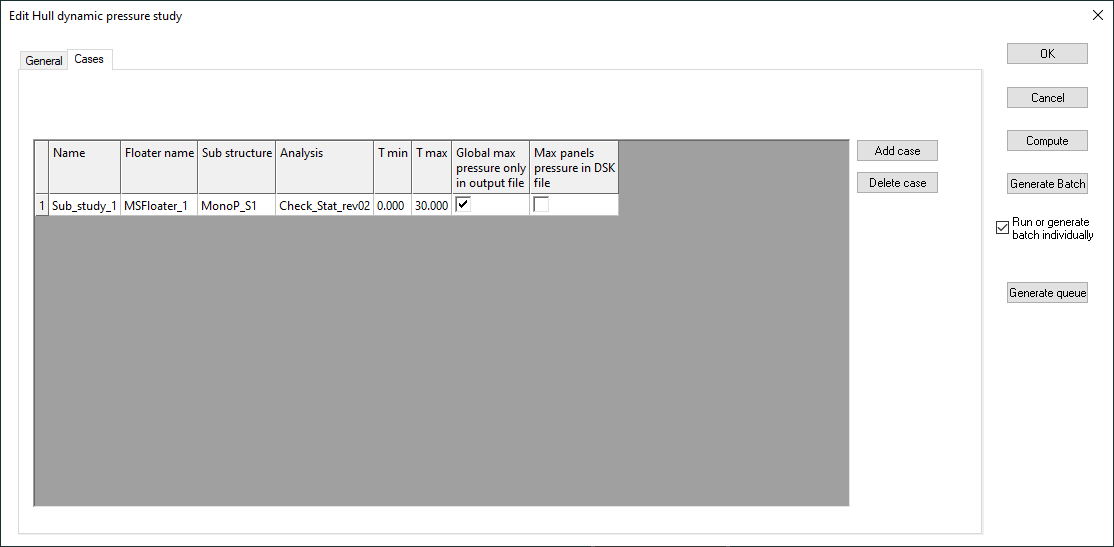
For every case, specific parameters may be defined:
-
Tmin, Tmax : time window for the post-processing
-
Global max pressure only in output file: An output file is created in the folder of the analysis (output_SST_analyse with SST the name of the floater or substructure and analyse the name of the dynamic anaysis used to recompute the pressures). If this option is checked, the file contains three columns: time, maximum pressure, and mean pressure (maximum and mean are the maximum and mean pressure over the mesh). Otherwise, the different components of the dynamic pressure are detailed (Pressure in Pa). The files contained then 8 columns:
-
The time (s),
-
The element number,
-
The static pressure (Pstat) in still water,
-
The hydrostatic pressure (Phys) : "Hydrostatic" pressure variation due to the floater's motions computed on the instant immersed volume,
-
The Froude-Krylov pressures (Pfkr): "Hydrostatic" pressure variation due to the wave elevation computed on the instant immersed volume,
-
The diffraction and radiation pressures (Pdif, Prad): pressure variations due to the modification of the incident wave by the floater derived from the pressure transfer functions previously computed by Diodore.
-
The total pressure (Ptot): the sum of all the pressure components.
-
-
Max panels pressure in DSK file: If this option is checked, the maximum pressure on the time interval is computed at each panel of the mesh and results can be displayed (see display the results in the dsk file. ). The data are saved in an ASCII file Pmax.tec (tecplot format).
-
